A laptop's charger requirement is not a fixed number — it tracks the workload. An ultrabook idling in a browser draws 10W, exporting video pulls 40W, and a gaming laptop under load can draw 150W or more. This guide shows how to estimate your real power draw and pick a charger that keeps up with the workload, not just the sticker.
Why laptop power draw is workload-dependent
The CPU and GPU are variable loads: they ramp up when there is work to do and drop to near-idle between tasks. USB Power Delivery negotiates power with the laptop, which means the charger's wattage is a ceiling the laptop draws from only when it needs to. The practical consequence is that a 65W charger is plenty for light work and marginal for sustained heavy load — on the same laptop.
The workload dependency has a measurement consequence: the adapter wattage printed on the laptop is the design ceiling, and real draw is usually far below it. Power supply design references describe the same principle from the converter side — efficiency and thermal behavior are load-dependent curves, not single numbers. For buyers, this means the right charger question is "what is my peak workload draw," and the answer comes from a meter, not from the laptop's name.
Reading laptop specs: adapter wattage vs chip TDP
The adapter wattage in the box is the manufacturer's answer to the worst case they expect: chip TDP plus screen, USB devices and charging margin. TDP is the chip's thermal design power, not its peak draw — CPUs can exceed TDP briefly, and GPUs add their own budget on top. Reading specs correctly means summing the chip budgets, the display, and the ports, then comparing against the adapter's rating.
The gap between TDP and real draw is bigger than most buyers assume: a chip rated at 45W TDP typically sustains far less in a thin chassis, because the thermal design cannot dissipate the theoretical maximum. That is why a laptop can ship with a 65W adapter and a 45W TDP chip — the adapter covers the real-world envelope, not the datasheet ceiling. Reading specs correctly means looking at the adapter wattage as the manufacturer's worst-case answer, then measuring your own workload against it with a meter. The meter settles every argument about whether a charger is big enough.
Estimating power for office, media and gaming loads
The estimate has three tiers:
- Office and web: 10–25W typical; a 45–65W charger is plenty, even while charging the battery.
- Media and productivity: 25–45W; a 65W charger covers it with headroom.
- Gaming and rendering: 60–150W+; a 100W or 140W charger matches the workload, and some gaming laptops need more.
The tier you live in decides the charger. Buying the gaming tier for office work wastes weight and money; buying the office tier for gaming drains the battery while plugged in.
Adding headroom for USB devices and charging
The charger also powers USB devices (docks, phones, peripherals) and recharges the battery while the laptop works. Add 20–30W for a dock plus a phone, and another 20W if you expect the battery to fill while you work. A 65W charger serving a 45W laptop plus a dock is already at the edge; 100W restores the margin.
The headroom calculation should include the dock's own consumption, which many budgets miss: a dock that runs an external display and a drive can draw 10–20W before the laptop's workload is even counted. Add the dock, the phone charge pass-through and the battery-fill demand, and a 65W budget can become 80–90W of real need. The USB Type-C ecosystem makes the fix simple — one 100W charger covers the whole desk — but only if the budget was calculated with the peripherals included.
Choosing between 65W, 100W and 140W
| Workload | Suggested charger |
|---|---|
| Office/web ultrabook | 45–65W |
| Productivity laptop + dock | 65–100W |
| Gaming/rendering + devices | 100–140W |
| Mobile workstation | 140W+ |
Choose by the simultaneous load, not the laptop class: a light ultrabook with a dock and external drive behaves like a heavier machine at the wall.
Testing a charger against your real workload
The test is straightforward: run your heaviest real task — video export, compilation, gaming — with the charger connected and the battery at 50%. If the battery drains while you work, the charger is undersized. A USB-C power meter on the charger's output shows the actual draw, and the number tells you exactly which tier you need.
The test should be run on the worst day, not the average one: video export, a compilation, a render, or a long video call with the screen at full brightness. Those are the sessions that expose an undersized charger, and they are exactly the sessions users remember. A certified PD charger that holds its rated output through the worst case is the one to keep; one that steps down under load converts an occasional slow charge into a daily frustration.
Reading laptop power specs correctly
Three numbers matter: the adapter's rated wattage, the chip TDP (and GPU TGP for gaming models), and the USB-C PD input limit. Some laptops charge over USB-C at a lower wattage than their barrel adapter, so a 100W USB-C charger may deliver less than the OEM 130W brick. Check the laptop's USB-C charging spec before assuming PD equals the adapter's wattage.
Workload examples and wattage needs
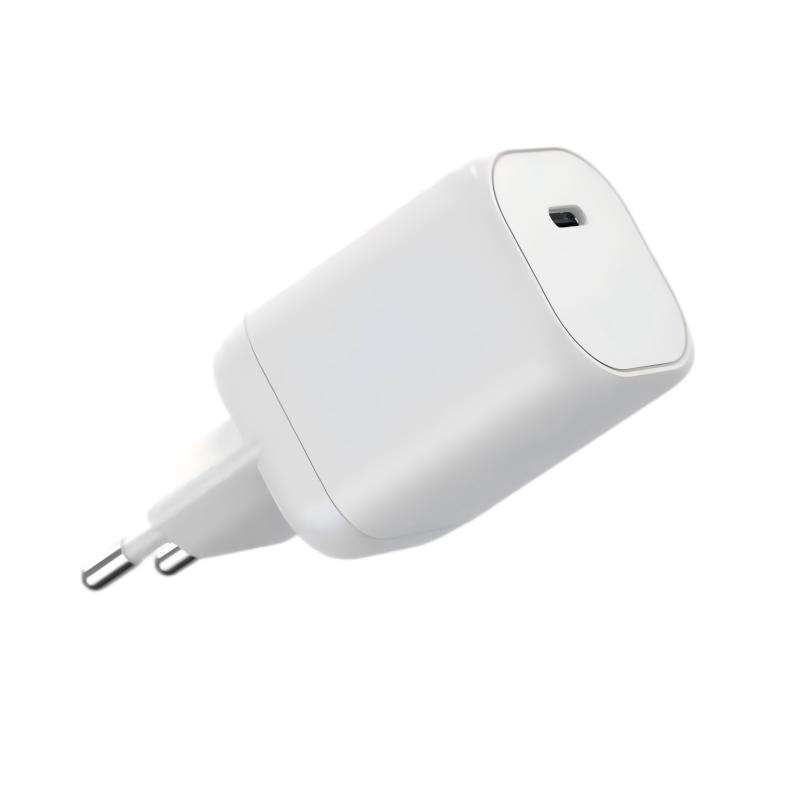
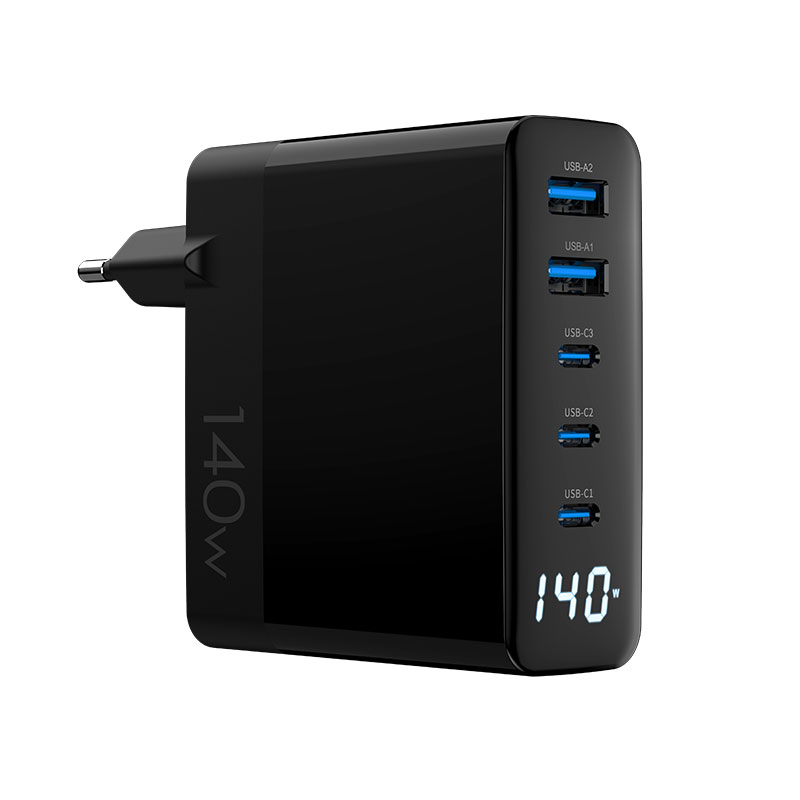
Concrete examples: a MacBook Air in office work pulls 10–20W (65W charger is plenty); a 16" Pro rendering video can draw 60–90W (100W is the safe tier); a gaming laptop with a discrete GPU under load can exceed 150W and needs its OEM brick or a 240W EPR-capable charger. The WET-100W-C 100W GaN adapter and the WEG-140W-2A3C 140W model cover the common middle tiers.
Charging while under load explained
When the laptop is under load, power flows two ways: to the components and to the battery. If the workload draw exceeds the charger output, the battery supplies the difference and drains. That is why a charger that "works" at idle can fail under load — and why the workload, not the laptop's name, is the specification.
Testing your laptop's real draw
Use a USB-C power meter between charger and laptop, or the laptop's own power reporting where available. Record the draw during idle, office work and your heaviest task; the peak is the number that sizes the charger. Repeat with the battery low, because battery charging adds current on top of the workload.
Using the budget to pick a charger
Turn the measured peak into a purchase: add 20–30% headroom and choose the nearest tier. The USB-C ecosystem makes the choice portable — the same 100W charger serves the laptop, a phone and a tablet — so the extra headroom is not wasted even when the laptop does not use it.
FAQ
How many watts does my laptop need under load?
Measure the peak draw during your heaviest task with a power meter, then add 20–30% headroom. Office laptops typically need 45–65W; gaming and rendering laptops can need 100–150W or more.
Is a higher-wattage charger always better for a laptop?
Not necessarily — the laptop negotiates what it needs, and a bigger charger is safe but not faster. Match the tier to the workload plus headroom for devices.
Can a 65W charger run a gaming laptop?
It can power light use, but under gaming load the laptop will draw more than 65W and the battery will drain. Gaming laptops need chargers matched to their workload, often 100W+ or the OEM brick.
Does charging over USB-C deliver the same wattage as the original adapter?
Not always. Some laptops cap USB-C charging below the barrel adapter's wattage, so check the laptop's USB-C input limit before replacing the OEM charger.
Choosing chargers for your laptop fleet or personal setup? Send your device mix and workloads to our team through the contact page — we will help you match wattage tiers to real usage.
This article is part of Laptop Chargers, the guide that covers this topic in decision order.