Modern desks get power from three sources — the laptop charger, the dock and the USB-C monitor — and the boundaries confuse everyone. This guide explains who delivers what, when a dock or monitor can replace the charger, and how to budget power across a full desk setup without guessing.
How docks and monitors deliver power
USB-C docks and monitors deliver power through Power Delivery: the dock or monitor takes its own power input and forwards a portion to the laptop over a single USB-C cable. The laptop then negotiates the wattage the dock or monitor offers. The key number is the "power delivery output" of the dock or monitor, not its total power rating — a dock can consume 60W itself and deliver only 60W to the laptop.
The power path through a dock or monitor is worth tracing because it explains most surprises: the device takes its input from the wall or a charger, consumes its own share, and forwards the remainder to the laptop over USB PD. The forwarded amount is the spec to read — and it is often far below the device's total rating. The power supply design behind the dock decides how gracefully it handles the split when the panel is bright and peripherals are attached.
Where a standalone charger still wins
The standalone charger wins in three situations: when the dock or monitor under-delivers wattage, when the laptop draws more than the dock can forward, and when the dock is off or disconnected. A dock that delivers 60W cannot fully power a 100W laptop under load, and a monitor that forwards 30W barely maintains a Pro laptop. The charger remains the reliable baseline; the dock is convenience on top.
Power budgets in a full desk setup
The desk budget has three lines: the laptop's workload draw, the dock's own consumption, and the peripherals it powers. A 65W laptop plus a dock plus an external drive can exceed the dock's input, which means the dock draws from the charger and under-delivers to the laptop. The fix is matching the charger wattage to the dock's input requirement, or charging the laptop directly when the dock is overloaded.
The full-desk budget is a stack: laptop workload, dock consumption, monitor panel, peripherals and phone pass-through. The stack explains why a setup that worked in winter fails in summer — higher ambient reduces the charger's sustained output and the laptop's tolerance. Certified chargers with published derating curves let buyers size the stack honestly. The practical rule is to add the two largest draws, then 20% margin, then match the charger.
Combining dock, monitor and charger
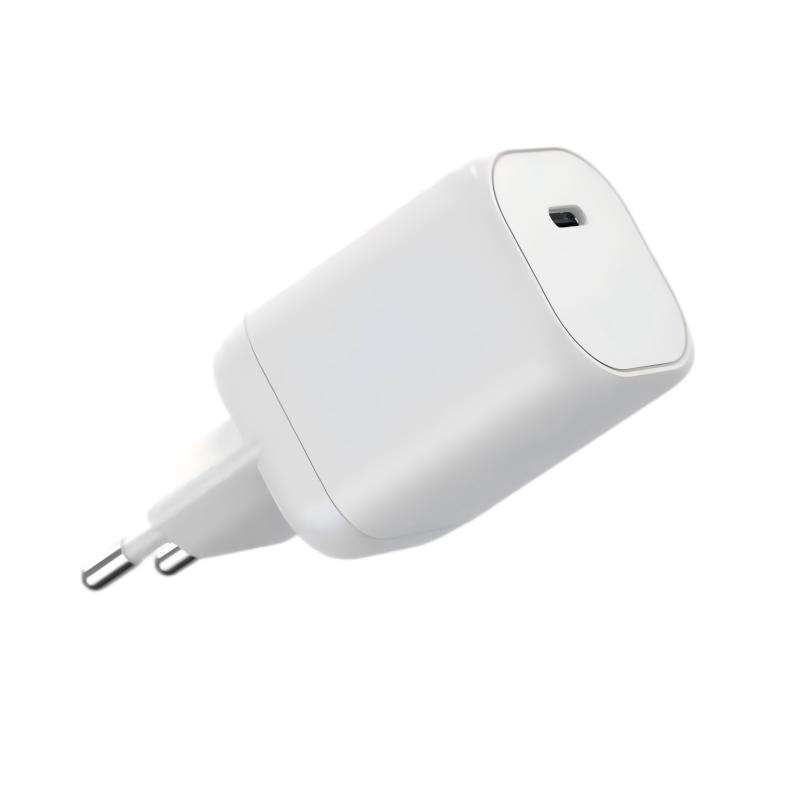
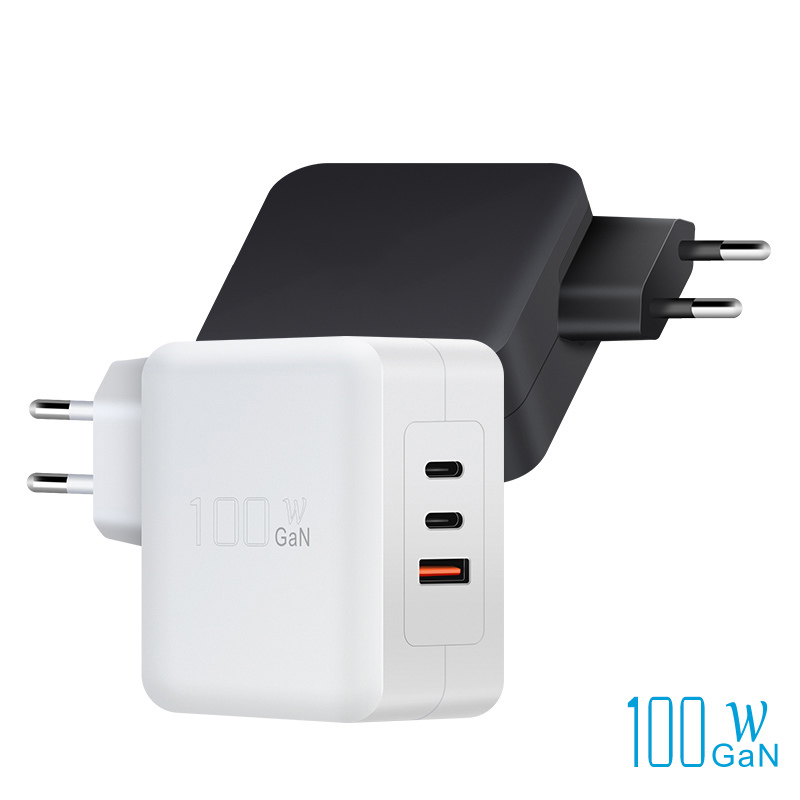
The clean setup: one high-wattage charger feeds the dock (or the monitor), and one USB-C cable carries video, data and power to the laptop. The WET-100W-C 100W adapter and the WEP-100-CCA 100W model cover the wattage most docks need. Verify the dock's power delivery output equals or exceeds the laptop's requirement before assuming the single-cable setup works.
Troubleshooting charging through docks
The failure pattern is consistent: "laptop drains while docked." Check in order: the dock's PD output spec, the charger feeding the dock, the cable rating, and the laptop's negotiated wattage. The most common fix is a bigger charger on the dock's input, not a bigger dock. A power meter on the laptop's USB-C cable shows the negotiated number in seconds.
The troubleshooting order exists because the failure modes are ordered by likelihood: under-rated cable, dock PD output below the laptop's draw, charger feeding the dock at too low wattage, and panel brightness stealing the budget. A USB-C power meter at the laptop's cable resolves the diagnosis in seconds. Most "laptop drains while docked" tickets end with a bigger charger on the dock's input — a fix that is cheaper and more predictable than replacing the dock.
Choosing power for different desk setups
| Desk setup | Power recommendation |
|---|---|
| Laptop + small dock | 65W charger feeding the dock |
| Laptop + dock + external display | 100W charger feeding the dock |
| Workstation + dock under load | 140W+ charger, or direct charging |
| Monitor-with-PD only | Match charger to monitor's PD output |
Reading dock power delivery specs
Two numbers matter on a dock's spec: the input wattage it requires and the PD output it forwards. A dock that needs 100W input and forwards 60W to the laptop needs a 100W charger; feeding it 65W means the laptop gets less than 60W under load. The spec sheet states both numbers; read them before buying the charger.
Dock specs bury the relevant numbers in fine print, so the reading habit is specific: find the input power requirement, the PD output to the laptop, and the cable that was tested. A dock that requires 100W input and forwards 60W needs a 100W charger on its input; feeding it 65W starves both the dock and the laptop. The same reading applies to monitors with PD — the output figure, not the total rating, is the compatibility number. Buyers who read the fine print once stop buying undersized chargers forever, and the habit extends to monitors — the same two-number reading (input requirement and PD output) applies to any USB-C device that forwards power.
Why some docks underpower laptops
Docks underpower laptops for a design reason: they prioritize video and data, and power delivery is a budgeted extra. A dock's PD output is fixed at design time, so a 60W dock cannot be upgraded to 100W with software. If the laptop needs more, the options are a higher-wattage dock or a direct charger. The laptop's requirement, not the dock's marketing, decides which.
Charging monitors through USB-C
Some USB-C monitors accept power over the same cable and forward it to the laptop; others need their own power and forward a small amount. The distinction is in the spec — "power delivery output" versus "power input only." A monitor that only takes power cannot replace the laptop charger, and assuming otherwise is the most common monitor-charging mistake.
Dock firmware and power handshakes
Docks negotiate power through firmware, and firmware updates occasionally change behavior: a dock that delivered 60W before an update may deliver 85W after, or vice versa. When docked charging behavior changes, check for a dock firmware update before replacing hardware. The handshake itself is standard USB PD; the dock's implementation is the variable.
When to skip the dock for charging
Skip the dock for charging when the laptop is under sustained load, when the dock's PD output is below the laptop's requirement, or when a single failure point (the dock) is unacceptable. A direct charger keeps the laptop powered independently of dock and monitor health. For workstations and heavy users, the direct charger is not optional — it is the baseline.
FAQ
Do I still need a charger if my dock provides power?
Only if the dock's power delivery output matches your laptop's requirement. Many docks forward 60W, which is not enough for a 100W laptop under load — check the dock's PD output spec.
Can a USB-C monitor charge my laptop?
Some can, at the monitor's power delivery output — often 30–60W. Monitors that only accept power cannot charge the laptop at all; the spec sheet tells you which type you have.
Why does my laptop drain while docked?
Usually because the dock forwards less wattage than the laptop draws under load. Check the dock's PD output, the charger feeding it, and the cable rating in that order.
What wattage charger should feed a dock?
Match the charger to the dock's input requirement, not the laptop's wattage. A dock that needs 100W input and forwards 60W needs a 100W charger.
Designing desk power for your home or office? Send your device mix to our team through the contact page — we will help you match chargers to docks, monitors and laptops.
This article is part of Desktop & Multi-Port Charging, the guide that covers this topic in decision order.