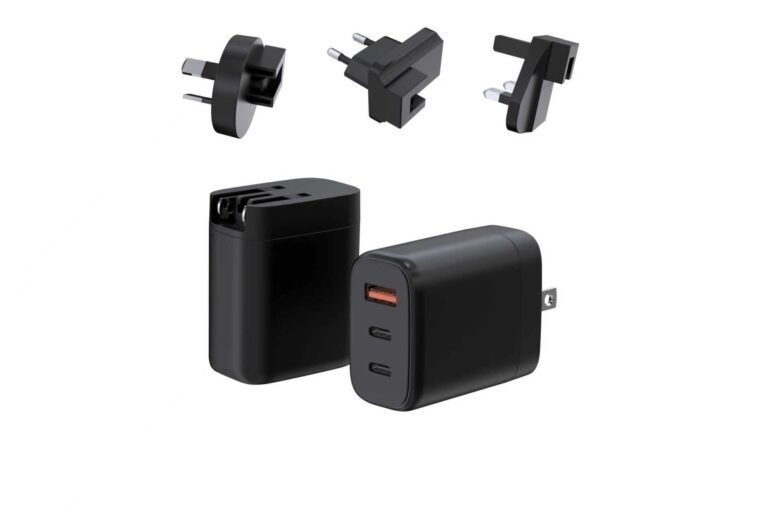
Most “broken” adapters are not broken — they are tripping on one of eight fixable problems: a loose connection, a dead outlet, a worn cable, a mismatched voltage, a tripped protection, or a device that is simply not negotiating power. This guide walks through the causes, the fixes, and the moment when you should stop using an adapter entirely.
Why Your Power Adapter Stopped Working
Work through the causes in order of likelihood: first the outlet, then the cable, then the connection, then the device. A surprisingly large share of “dead adapter” reports are resolved by plugging into a different socket or wiggling the barrel connector. Only after the cheap checks fail should you suspect the adapter itself.
“Power Connector Not Plugged In Properly”: What It Means
This message appears when the device detects power but the data/negotiation lines are not making contact — often a loose USB-C connection, a partially seated barrel plug, or a dirty connector. The fix is to reseat the connector, check for debris in the port, and try a different cable before suspecting the adapter. A worn port is a common cause on devices that are plugged in aggressively.
Loose Connections, Bad Cables, Dead Outlets: The Fixes
Here is the checklist that resolves most cases:
- Test the outlet with another device — many “adapter failures” are tripped circuits.
- Try another cable — USB-C cables fail more often than the adapter does.
- Reseat the connector at both ends and check for bent pins or debris.
- Match the voltage — an adapter with the wrong output voltage can prevent charging entirely.
- Let it cool — thermal protection can temporarily shut down an adapter after heavy use.
When a Faulty Adapter Is a Safety Risk (Stop Using It)
Stop using an adapter immediately if it is warm to the point of being hot, makes buzzing or crackling sounds, smells burnt, or shows a swollen or discoloured housing. These are signs of internal failure — replace it rather than test it. A certified replacement is the right fix; our OEM/ODM factory page explains how to source certified replacements at low MOQ.
How Factory QC Prevents These Failures
At the factory, these failures are prevented before shipping: 100% electrical and functional testing, hi-pot pressure tests, load aging and QA sampling catch loose solder, weak components and early-life failures. Batch traceability means a factory can find and correct a fault pattern. Our quality control page documents the gates, and the 65W GaN charger deep-dive shows the design side.
Why Is My Laptop Charger Blinking or Not Detected?
A blinking LED or a “charger not detected” warning usually means the adapter and laptop cannot agree on power, not that the adapter is dead.
- Wattage mismatch — an adapter below the laptop’s input requirement triggers a slow-charge warning or no detection.
- Protocol mismatch — a USB-C charger that does not negotiate PD correctly may be ignored entirely.
- Contact issue — a dirty or loose connector resets the detection loop.
Try reseating both ends and testing the adapter on another device; if the warning follows the adapter, replace it with one that matches the laptop’s spec.
How to Test a Power Adapter with a Multimeter
A multimeter tells you whether an adapter is truly dead or just not connecting. Two measurements settle most cases.
- Output voltage — set the meter to DC volts and probe the connector’s centre and outer contacts; you should read the rated voltage.
- Voltage under load — plug the adapter into a device and re-measure; a big voltage drop under load points to a failing adapter.
If the no-load voltage is correct but drops sharply under load, replace the adapter — the internal regulation has failed.
USB-C Charger Not Working? 5 Checks First
USB-C charging failures are usually in the chain, not the charger. Run these five checks before buying a replacement.
- Test the outlet — the simplest cause is a dead socket or tripped circuit.
- Swap the cable — USB-C cables fail often; try a known-good, 5A-rated cable.
- Clean the port — lint and dust in the phone or laptop port block the connection.
- Test on another device — isolates the charger from the device.
- Match the wattage — an undersized charger may refuse to charge a high-power laptop.
FAQ
Why does my adapter stop working when it gets hot? Thermal protection is tripping — let it cool and reduce load; if it recurs, replace the adapter.
Can a damaged cable damage my device? A shorted cable can — inspect for fraying and replace worn cables.
Why does my laptop say “slow charger”? The adapter’s wattage is below what the laptop expects, or the cable cannot carry the negotiated power.
Is it safe to use a generic replacement adapter? Only if it is certified and matches the voltage and current spec — check the marks and the label.
How do I get a certified replacement in bulk? MOQ from 200 pcs with certification documents — see the OEM/ODM page or contact us.
References: How-To Geek for charging troubleshooting, Tom’s Hardware for hardware diagnostics, and Battery University for safe charging practice.
Further reading: All About Circuits, PCWorld, MakeUseOf.
This article is part of Compliance & Power Supplies, the guide that covers this topic in decision order.