A USB-C monitor can charge your laptop, carry video and connect peripherals over one cable — until it cannot. The monitor's power delivery output decides how much charging it can do, and most monitors deliver less than a laptop needs under load. This guide explains monitor PD, when it is enough, and how to pair it with a dedicated charger without guesswork.
How USB-C monitors deliver laptop power
A USB-C monitor with Power Delivery takes its own power from the wall and forwards a portion to the laptop over the USB-C cable. The laptop negotiates the wattage the monitor offers, exactly as it would with a charger. The number that matters is the monitor's PD output — typically 30W, 60W or 90W — not its total power rating, which also feeds the panel and USB ports.
The power path inside a monitor is a budget allocation: the input power feeds the panel, the internal electronics, the USB hub and the laptop's charge request, and the PD output is whatever remains. That is why a monitor rated 65W PD may deliver less with a bright panel and attached peripherals — the budget is dynamic. The USB PD specification defines the negotiation, and the monitor's firmware decides the allocation. Reading the monitor's PD spec with this model in mind explains most charging surprises.
Monitor PD wattage: what to expect
Monitor PD outputs fall into predictable bands: entry monitors offer 15–30W (enough for light laptops at idle), mid-range monitors offer 45–65W (enough for ultrabooks), and premium monitors offer 90–100W (enough for most laptops under load). The band is printed in the monitor's spec as "USB-C PD output" or "power delivery to host." Read that number, not the marketing line about one-cable convenience.
Monitor PD output is also a moving target: firmware updates can change how a monitor allocates power, and panel brightness shifts the budget in real time. The USB PD negotiation reports the current allocation, and a power meter shows the delivered number. For buyers, the stable reference is the monitor's published PD spec plus a real-world test at full brightness — the two together predict the desk experience better than the marketing line.
When monitor power is not enough
Monitor power is not enough in three cases: the laptop draws more than the monitor forwards, the monitor's PD output drops when the panel is bright or peripherals are attached, and the laptop is a workstation needing 100W+. The symptom is the same as a weak charger — the battery drains under load — and the fix is a dedicated charger on the laptop's second port.
The not-enough cases share a signature: the battery drains under load, which users attribute to a failing battery or laptop rather than the monitor's PD budget. The certified charger options that fix it are a procurement answer, not a technical mystery. The reliable diagnostic is a power meter on the monitor's USB-C output — if it shows less than the laptop's draw, the monitor is not underpowered, it is correctly prioritizing its panel and ports — the IEEE overview of switched-mode power supply design explains the allocation logic behind that behavior.
Pairing monitors with dedicated chargers
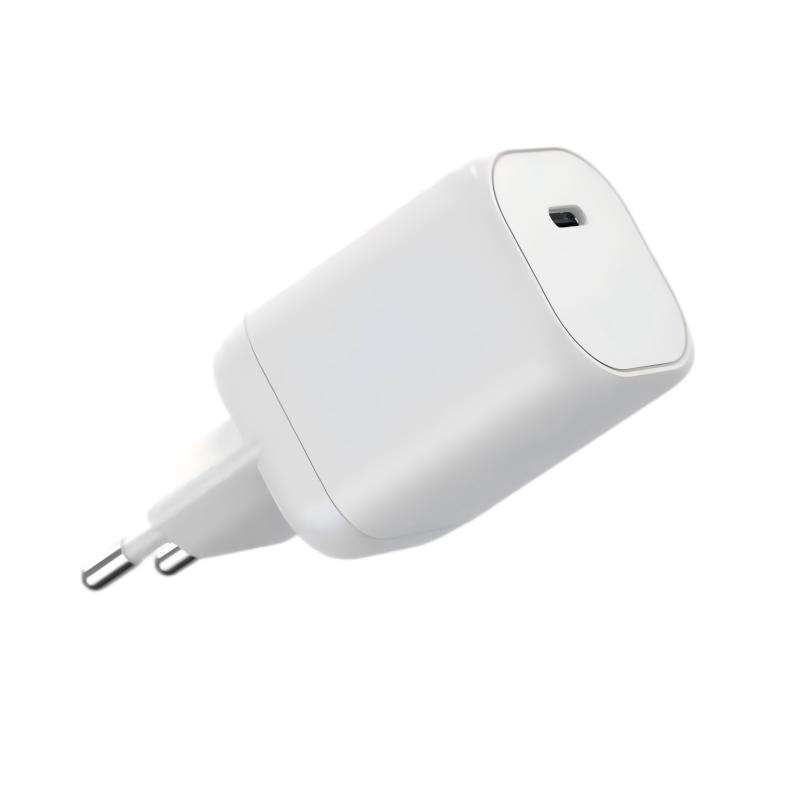
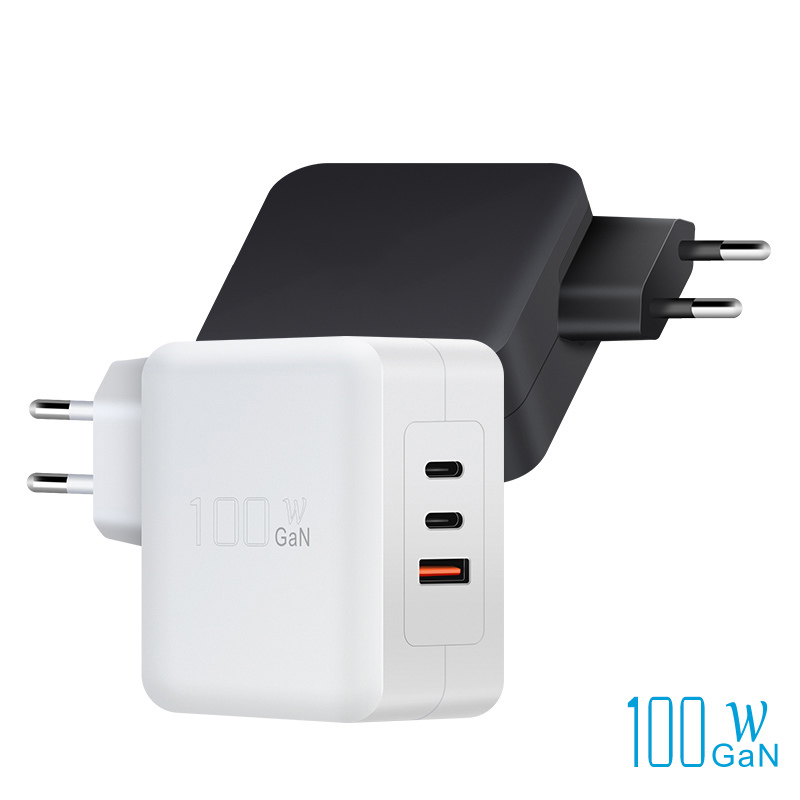
The reliable pairing: use the monitor for video and data, and keep a dedicated charger for the laptop when the workload demands it. A 100W GaN charger covers laptops above the monitor's PD output, and a 100W multi-port adapter charges the laptop, phone and peripherals from one brick. The two-cable setup (monitor cable for video, charger cable for power) is simple and reliable.
The pairing rule has a cable component that buyers frequently miss: the monitor's USB-C cable must be rated for the PD session, and many included monitor cables are video-first with modest current ratings. A 100W monitor PD output through a 60W cable delivers 60W, and the laptop drains under load. Check the cable rating alongside the monitor's PD spec, and upgrade the cable when the workload demands it. The pairing is three components — monitor, cable, charger — and the weakest one sets the delivered power.
Charging monitors, laptops and accessories
Some monitors also accept power over USB-C and forward it, which means the charger can feed the monitor and the monitor feeds the laptop — one charger, one cable to the desk. The catch is the chain: the charger's wattage must cover the monitor's needs plus the laptop's draw, or the laptop starves. Check both devices' power requirements before building the chain.
Buying a desk setup that stays simple
The simple desk setup rule: match the monitor's PD output to the laptop's requirement if you want one-cable charging, or accept a dedicated charger if the workload exceeds the monitor. Buy the charger first, then choose the monitor with a PD output that covers your typical workload. The desk stays simple when the power math is done at purchase time, not discovered at deadline time.
Simplicity is a specification: one cable for video, one charger for power, and no behavior that changes with panel brightness. The power supply design references behind a good monitor charger ensure the output holds under load, which is what "simple" actually means on a desk. Buy the charger that holds its rating and the monitor whose PD output matches the workload, and the setup runs for years without a second thought.
Monitor PD output explained
Monitor PD output is a negotiated budget, not a fixed flow: the monitor allocates its input power among the panel, USB ports and the laptop's charge request. A monitor rated 65W PD may deliver less when the panel is at full brightness and a drive is attached. The spec number is the ceiling; real delivered wattage depends on the session. Testing with a power meter shows the real number.
When monitor power suffices
Monitor power suffices for ultrabooks and light workloads: a 60W monitor with a 65W laptop handles office work and charges the battery, and a 90W monitor covers most Pro laptops at normal loads. The test is the same as any charger — connect under your heaviest workload and watch whether the battery gains. If it gains, the monitor is doing the job.
Pairing monitor and charger
The pairing decision is a table: monitor PD output versus laptop requirement decides whether you need a dedicated charger, and the charger tier follows the laptop's sustained draw. For mixed fleets, standardize one 100W charger per desk and let the monitor handle video only — the simplest inventory and the most reliable charging.
Troubleshooting charging through monitors
The troubleshooting order for "laptop not charging through the monitor": check the monitor's PD output spec, the cable rating (60W cables cap 100W sessions), the laptop's negotiated wattage with a meter, and the panel brightness effect. The most common fix is a dedicated charger; the second most common is a 100W-rated cable. The meter identifies both in seconds.
Desk setup recommendations
| Desk setup | Recommended power |
|---|---|
| Ultrabook + entry monitor | Monitor PD (30–60W) is enough |
| Pro laptop + monitor | 90W monitor PD or dedicated 100W charger |
| Workstation + monitor under load | Dedicated 100–140W charger |
| Mixed fleet desks | Standard 100W charger, monitor for video |
FAQ
Can a USB-C monitor charge a laptop?
Yes, at the monitor's power delivery output — usually 30–90W. Check the monitor's PD spec, because many monitors deliver less than a laptop needs under load.
How many watts does a USB-C monitor deliver to a laptop?
Typically 15–30W on entry models, 45–65W on mid-range, and 90–100W on premium models. The number is stated as the monitor's PD output.
Why is my laptop not charging through the monitor?
Usually the monitor's PD output is below the laptop's draw, the cable is under-rated, or the panel and peripherals consume the budget. Test with a power meter and a dedicated charger if needed.
Do I still need a laptop charger if the monitor provides power?
If the monitor's PD output covers your workload, no; if the laptop draws more under load, keep a dedicated charger for the heavy sessions.
Setting up desks with monitors and chargers? Send your laptop mix to our team through the contact page — we will match chargers to your monitors and workloads.
This article is part of Laptop Charger OEM & Fleet Programs, the guide that covers this topic in decision order.